Why Google Fonts Are a Problem
When a visitor lands on your site and you’re loading fonts directly from Google’s CDN, their browser sends a request to Google’s servers. That request includes the visitor’s IP address, and under GDPR, an IP address counts as personal data. You’re essentially sharing your visitor’s data with a third party (Google) without explicit consent.
This isn’t a theoretical concern. German courts have already ruled against websites using Google Fonts this way, and fines have been issued. If your audience is in the EU, this is a real legal risk you should take seriously.
GDPR Warning
Loading fonts directly from Google Fonts sends your visitors’ IP addresses to Google’s servers. Under GDPR, this counts as sharing personal data with a third party, and has already led to legal action in Germany.
Beyond the legal side, there’s also a performance cost. Every external request adds latency. Google Fonts means an extra DNS lookup, an extra connection, and an extra file download before your text renders. All of which negatively impact your Core Web Vitals scores in Google Lighthouse.
The Solution: Self-Host Your Fonts with Bricks Custom Fonts
Bricks Builder has a built-in Custom Fonts feature that lets you upload font files directly to your WordPress install and use them across your site. No external requests, no GDPR issues, no performance hit from third-party connections.
The workflow is straightforward: download your font files, upload them to Bricks, and assign them in your design. That’s it.
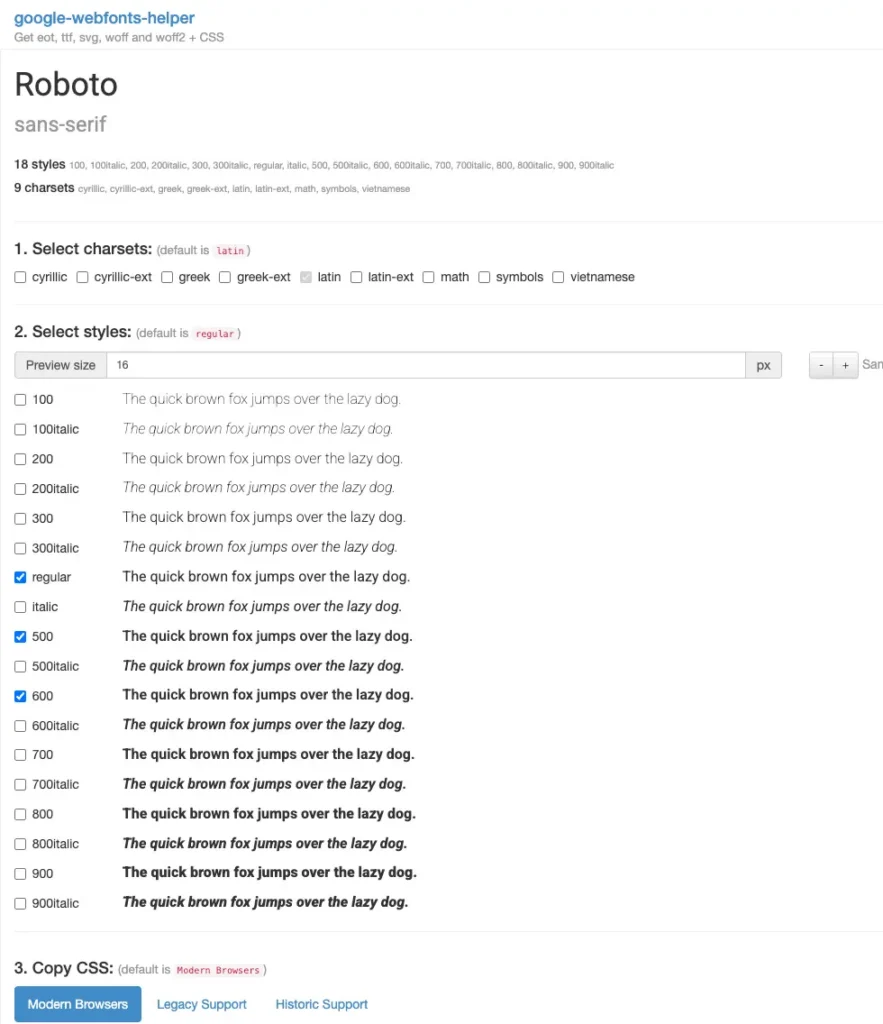
You can get the font files you need from gwfh.mranftl.com/fonts — it lets you download any Google Font as self-hosted files in the formats you need (woff2, woff), ready to upload.
How to Upload Custom Fonts in Bricks
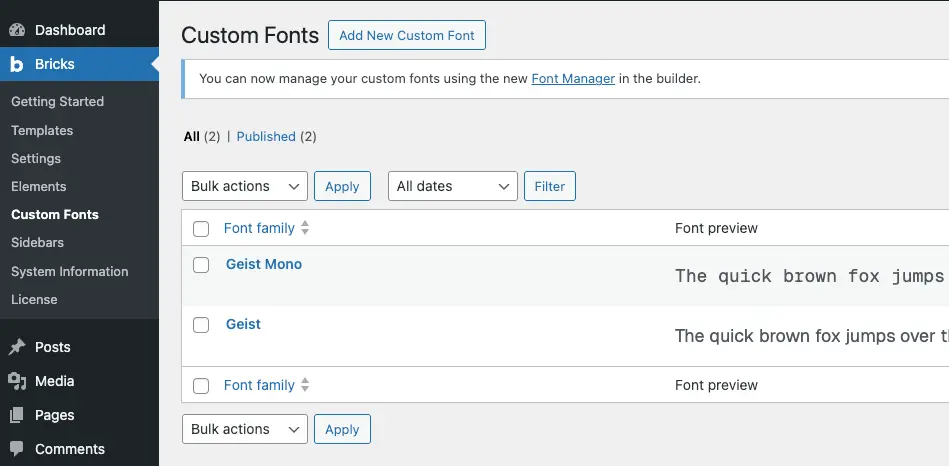
Once you have your font files, go to your WordPress dashboard and navigate to Bricks → Custom Fonts. Click “Add New Custom Font”, give it a name, and upload your woff2 and woff files. After saving, the font is immediately available across the entire builder. You can also manage your fonts directly inside the builder via the Font Manager.
What About Bricks’ Google Fonts Integration?
Bricks has a built-in Google Fonts picker that makes it easy to select fonts directly in the builder. It’s convenient, but it loads fonts from Google’s CDN, which means all the problems above apply.
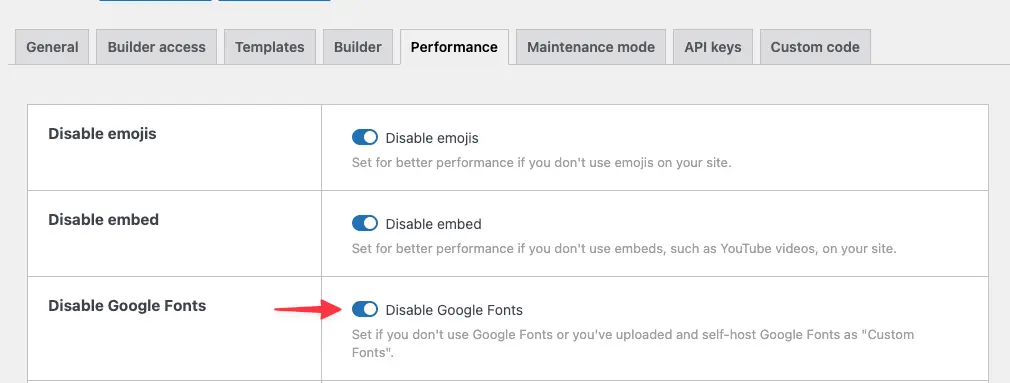
The fix is simple: disable the Google Fonts integration in Bricks settings and use Custom Fonts instead. You get the exact same fonts, just served from your own server.
The Impact on Your Lighthouse Scores
This is where it gets interesting.
If you run a Google Lighthouse audit on a site that loads fonts from Google, you’ll typically see warnings like:
- “Eliminate render-blocking resources” — the Google Fonts stylesheet blocks rendering
- “Reduce the impact of third-party code” — Google Fonts shows up as a third-party resource with measurable load time
- “Avoid chaining critical requests” — the font CSS to font file chain adds extra roundtrips
Once you switch to self-hosted fonts, these warnings disappear. Your Performance score, LCP (Largest Contentful Paint), and FCP (First Contentful Paint) all improve. Sometimes significantly, especially on slower connections.
Summary
Using Google Fonts directly in Bricks might seem like the easy option, but it comes with real downsides — both legally and performance-wise. Self-hosting your fonts with Bricks Custom Fonts solves both problems at once, and the process takes less than ten minutes.
- Loading Google Fonts directly sends visitor IP addresses to Google — a GDPR violation in the EU
- External font requests hurt your Lighthouse scores: render-blocking resources, third-party load time, and chained requests
- Bricks Builder has a built-in Custom Fonts feature — upload your font files and serve them from your own server
- Use google-webfonts-helper to download any Google Font as self-hosted woff2/woff files
- Disable Bricks’ Google Fonts integration in settings and switch to Custom Fonts — same fonts, no external requests